How to log in to Madrasati
Students and teachers sign in with a Ministry-issued @moe.gov.sa Microsoft account. Parents sign in with Noor credentials. This guide covers all three login flows and the most common errors.
Madrasati has two distinct sign-in flows depending on your role. Students and teachers use a Ministry of Education Microsoft 365 account (issued by the school) that ends in @moe.gov.sa. Parents and administrators select a separate option and sign in with their existing Noor (نور) system credentials — no Microsoft account required for parents.
Step-by-step
- 01
Open madrasati.sa
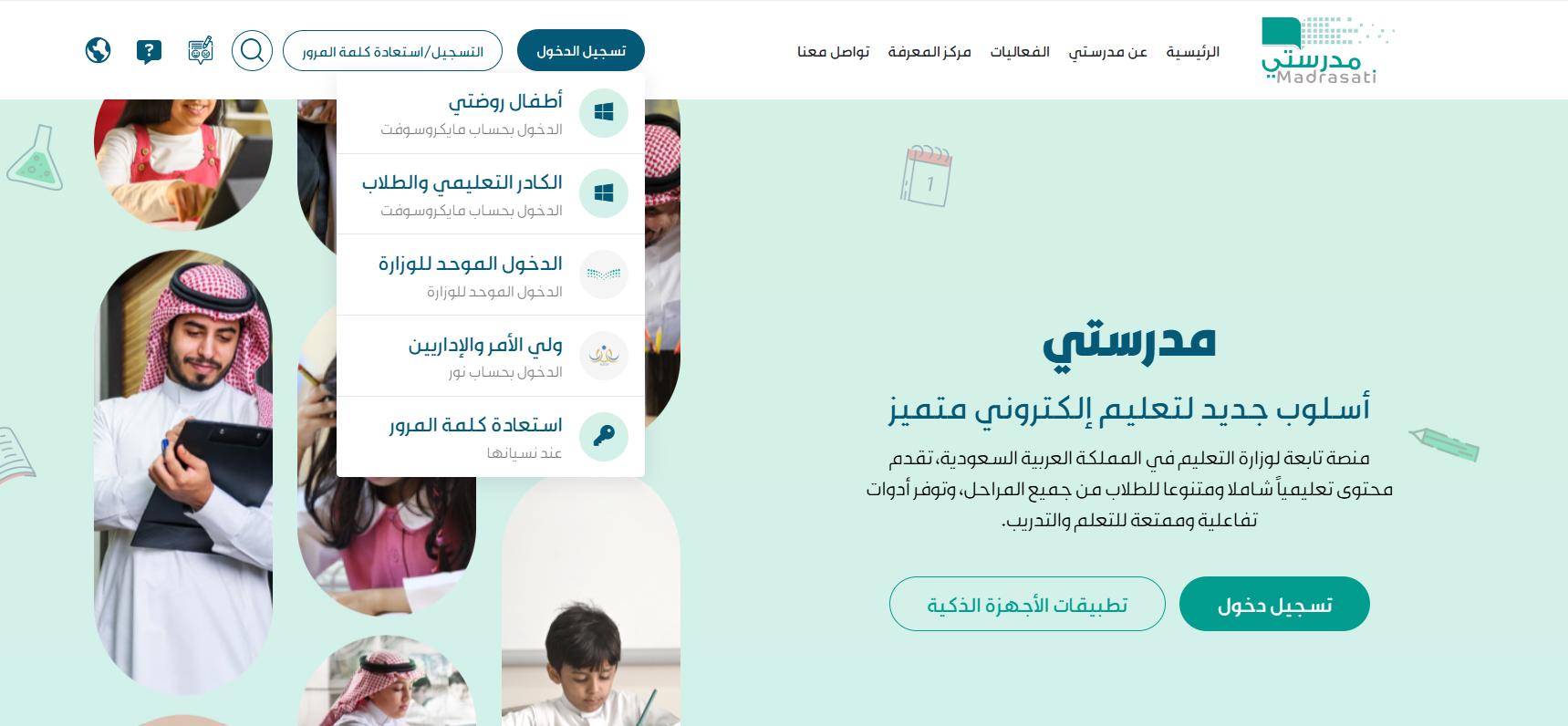
Go to madrasati.sa in a browser (Chrome or Edge recommended), or open the Madrasati mobile app from the App Store or Google Play. The homepage appears with a 'Sign in' button at the top.
- 02
Choose your role from the dropdown
Click 'Sign in' (تسجيل الدخول) at the top. A dropdown appears with five options: Kindergarten children (أطفال روضتي) via Microsoft, Educational staff and students (الكادر التعليمي والطلاب) via Microsoft, Ministry unified login (الدخول الموحد للوزارة), Parents and administrators (ولي الأمر والإداريين) via Noor, and Password recovery (استعادة كلمة المرور). Pick the option that matches your role.
- 03
Students / teachers: enter your @moe.gov.sa email
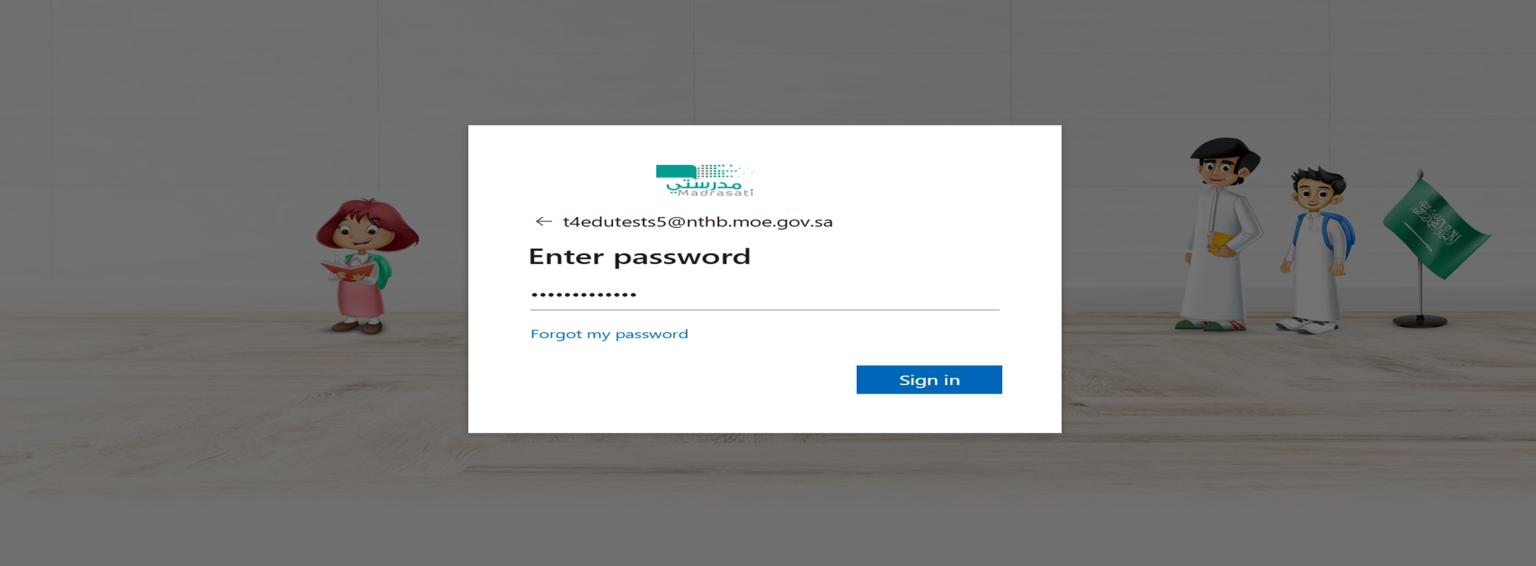
After selecting 'Educational staff and students', a Microsoft sign-in page opens. Enter the email address or phone number registered in the Noor system — your account ends in @moe.gov.sa (for example: username@district.moe.gov.sa). Click Next.

- 04
Students / teachers: enter your password
Enter the password the school issued with your account, then click Sign in. If you've forgotten it, click 'Forgot my password' on this screen — an SMS reset will be sent to your Noor-registered phone number. Alternatively, ask the school's IT office to reset it.
- 05
Parents: sign in with Noor
Parents choose 'Parents and Administrators' (ولي الأمر والإداريين) from the dropdown. This opens the Noor sign-in page where you enter your Noor credentials. No Microsoft account is needed — parents use Noor directly.
- 06
Recover your account if needed
Select 'Password recovery' (استعادة كلمة المرور) from the login dropdown. Enter the student's national ID number (رقم الهوية) and Noor-registered phone number, then tap 'Verify' (تحقق). You'll receive a temporary password by SMS. Log in and set a new permanent password.
- 07
The dashboard appears after sign-in
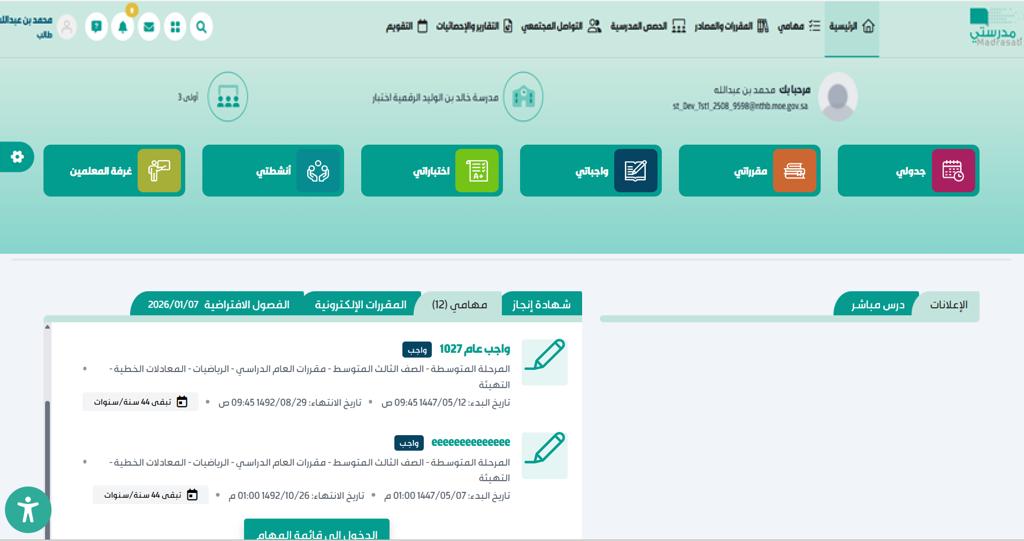
Once signed in, the main dashboard loads showing quick links (جدولي, مقرراتي, واجباتي, اختباراتي, أنشطتي, غرفة المعلمين), the top navigation bar, and a live task feed.
Useful tips
- Students and teachers: your @moe.gov.sa email was sent by the school at the start of the year. If you never received it, ask the homeroom teacher or school admin office.
- Parents: your Noor credentials are the same ones you use for the Noor system. If Noor itself isn't accessible, contact the school admin office.
- Bookmark madrasati.sa — phishing copies exist on lookalike domains.
- Install the Microsoft Teams app for live virtual classes — the desktop/mobile app gives better audio and video than the browser.
Common questions
Quick links
Looking for a school?
Browse our directory of 1,800+ schools across Saudi Arabia — filter by city, curriculum, fees, and ratings.
Reach parents choosing a school
Sponsor the academic calendar, exam schedule and guides — the pages parents check every term.